
How Toolora works
Short, practical guides for creating an account, signing in with a passkey, managing your plan and getting the most out of the tools. Everything runs in your browser.
No article matches that search. Try “passkey”, “payment” or “verification”.
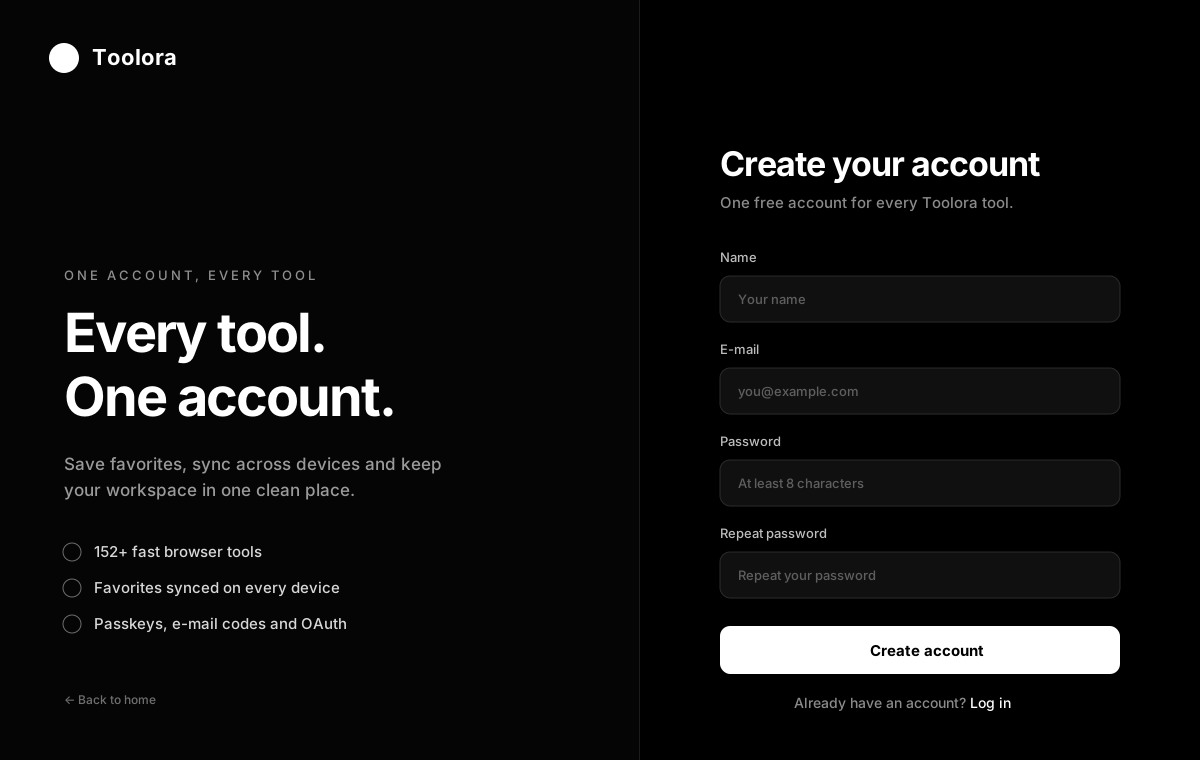
Create your account
An account is optional, but it lets you keep favorites in sync, manage a paid plan and use passkeys. Registration only needs an e-mail address and a password. There are no social buttons on the register screen: Discord, Google and GitHub are sign-in methods, not sign-up methods.
- Open the sign-in pageGo to /getstarted/ and choose Register below the form.
- Fill in your detailsEnter your name, e-mail address, a password of at least 8 characters and repeat the password.
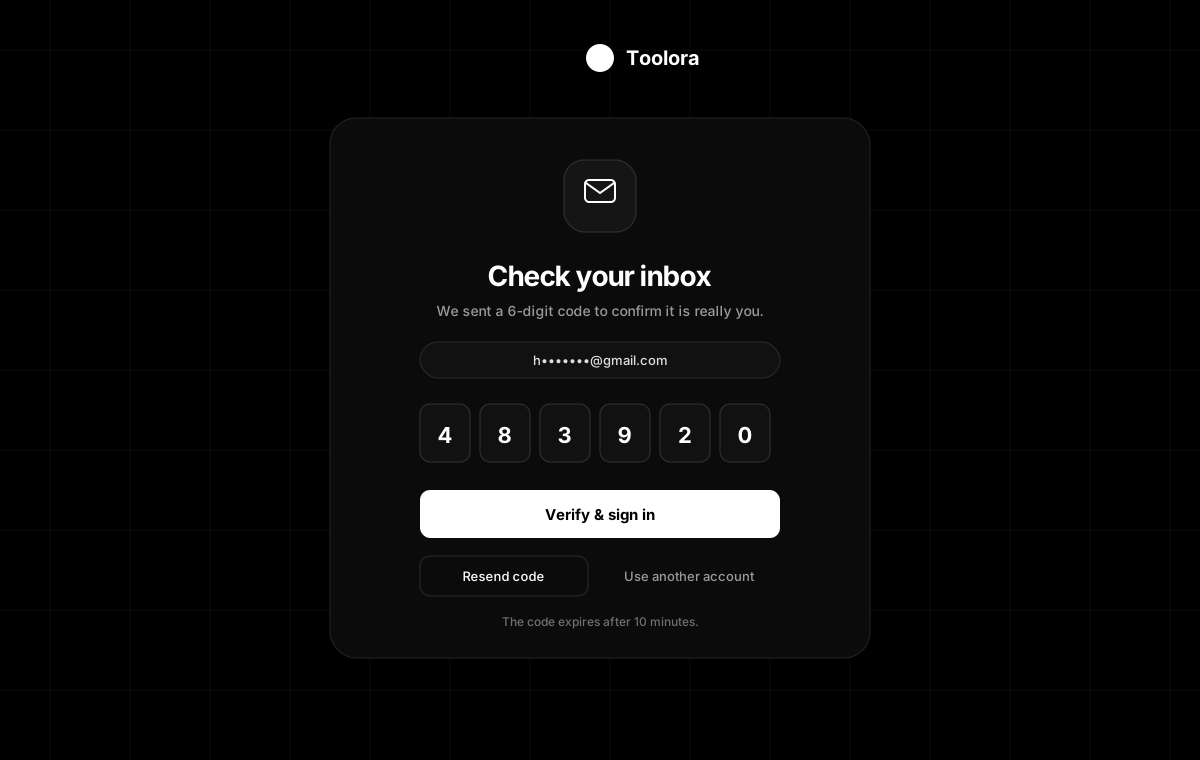
- Confirm your e-mailWe send a 6-digit code to the address you entered. Enter it on the verification screen to finish.
The verification code is sent to the address you register with. Check your spam folder if it does not arrive within a minute.
Sign in
Open /getstarted/. The login view shows every method that is configured on the site: Discord, Google, GitHub, e-mail and password, and a passkey. Every method ends with a 6-digit e-mail code before a session is created.
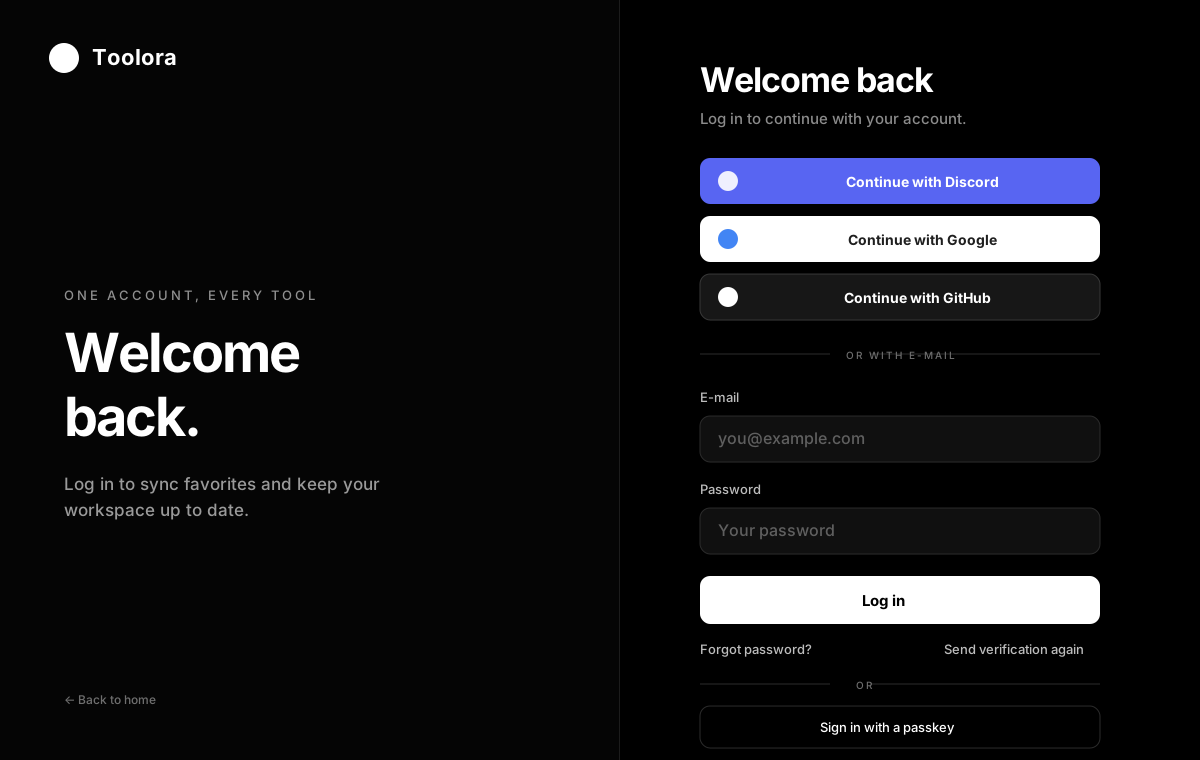
With e-mail and password
Enter your e-mail and password and choose Log in. We send a code to your inbox. Enter it on the verification screen; the code expires after 10 minutes.
With a passkey
Leave the e-mail field empty if you have one account, or fill it in if you have several. Choose Sign in with a passkey and approve the prompt from your device. See Passkeys below.
With Discord, Google or GitHub
Choose the provider, approve the request on their site and come back to Toolora. We then send the same 6-digit code to the e-mail address on that account.
E-mail verification codes
Every sign-in creates a short-lived pending session. The session only becomes a real login after you enter the 6-digit code we send to your e-mail address. This protects your account even if a password or passkey is used on a new device.
Toolora will never ask for your password or code by chat, phone or social media. If someone asks, it is not us.
Passkeys
A passkey is a private key stored on your device, protected by Face ID, Touch ID, Windows Hello, a screen lock or a hardware security key. Toolora never receives the private key, so there is no password to leak.
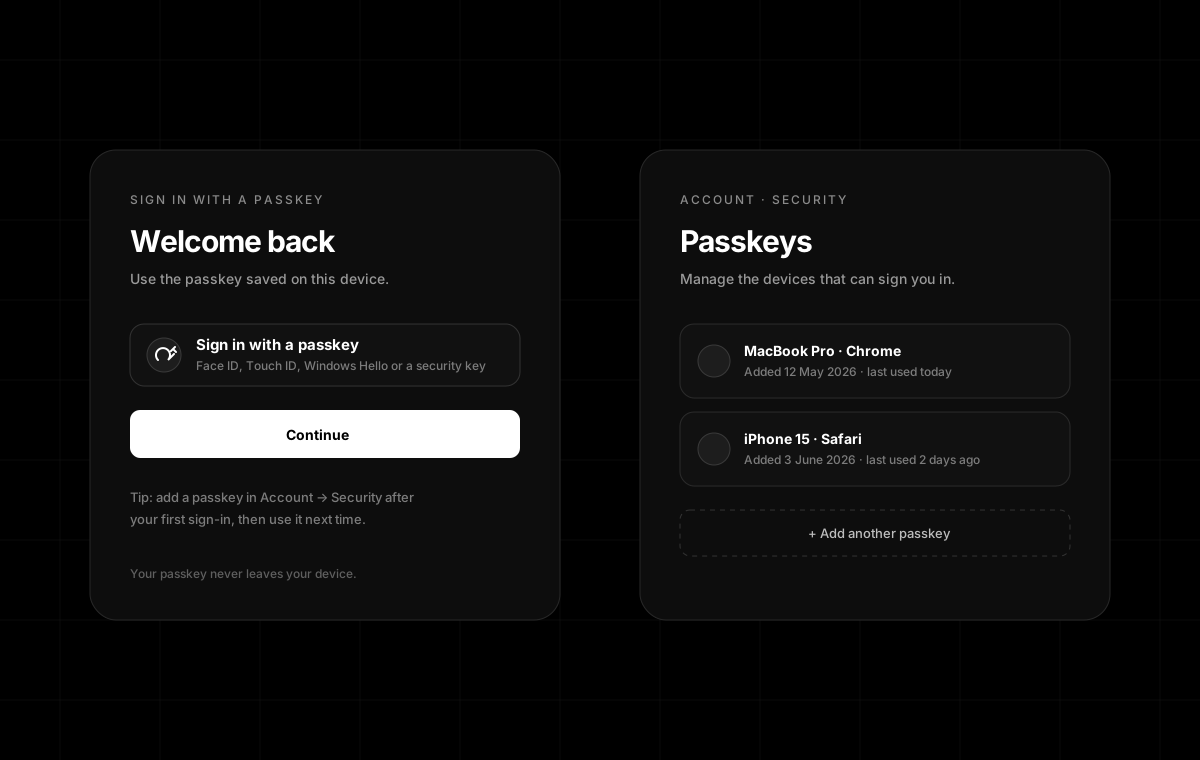
Add a passkey
- Sign in normallyUse e-mail and password, a provider or an existing passkey, and complete the e-mail code.
- Open Account → SecurityGo to /account/ and find the Passkeys section.
- Create the passkeyChoose Add passkey, confirm with your device and give it a recognisable name.
Requirements
- A recent version of Chrome, Edge, Safari or Firefox.
- A secure HTTPS connection. Passkeys do not work on plain HTTP, except on localhost during development.
- The same domain you registered on. A passkey for toolora.eu works on www.toolora.eu, but not on a different domain.
The browser does not support WebAuthn or the page is not on HTTPS. Try a current browser and open the site over https://.
Discord, Google & GitHub
These providers are optional and only appear when the site owner has configured their client credentials. Discord is the primary social option on Toolora.
When you choose a provider, you leave Toolora for the provider’s consent screen. After you approve, the provider returns you to Toolora with a verified e-mail address. We then send the usual 6-digit code and create your session only after you enter it.
That provider is not configured on this deployment. Use e-mail and password or a passkey instead. Your account is not affected.
Reset your password
- Request a linkOpen /forgot-password/ and enter the e-mail address on your account.
- Open the e-mailChoose the reset button in the message. The link is valid for 30 minutes and can be used once.
- Choose a new passwordEnter at least 8 characters and confirm it. Every other session is signed out for safety.
If you signed up with Discord, Google or GitHub and never set a password, you can still request a reset link to create one. Otherwise, sign in with the provider.
Reset links are one-time only. Request a fresh link from the forgot-password page.
Find and use a tool
Open All tools to browse 152 tools by category, or type in the search box to filter by name, description or tag. Every tool opens on its own clean URL, for example /tools/json/.
Tools run entirely in your browser. Text, images, PDFs and files are processed on your device and are never uploaded. You can use every tool without an account.
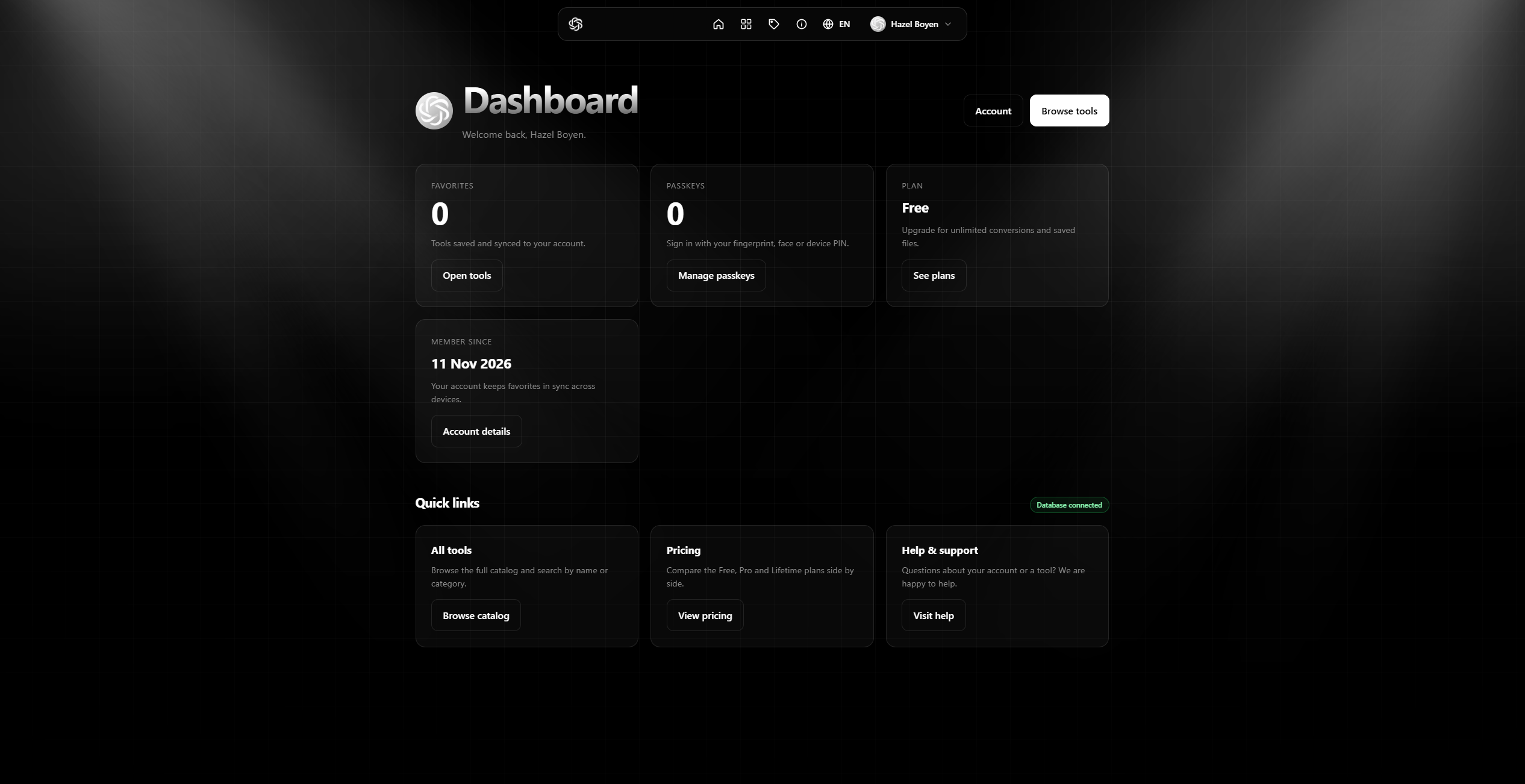
Favorites & sync
Choose the heart on a tool card to save it. Favorites are stored locally for guests and synced to your account when you sign in. That means the same list appears on your laptop, phone and tablet.
To remove a favorite, choose the heart again. If you sign out, your local list stays on that device and is merged the next time you sign in.
Email Cleaner
The Email Cleaner turns a messy forwarded message into readable text. Paste the full e-mail, including headers and HTML if you have them, and Toolora removes tracking pixels, tracking parameters, quoted replies and signatures.
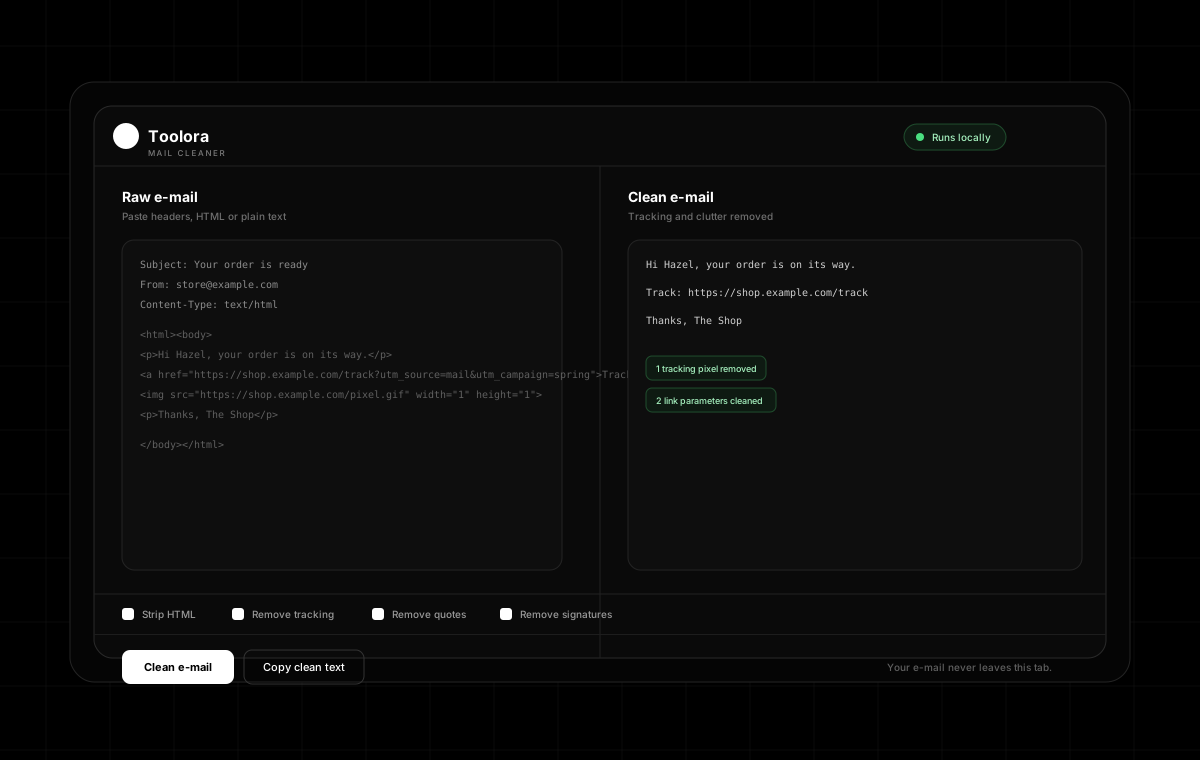
What it cleans
- HTML: scripts, styles, layout tables and hidden elements are stripped.
- Tracking: 1×1 pixels and parameters such as
utm_*,fbclidandmc_eidare removed. - Quotes: previous replies introduced by
>or “On … wrote:” are removed. - Signatures: the block after
--and “Sent from my iPhone” lines are removed.
Use the checkboxes to keep any part you still need, then copy the clean text or download it as a .txt file.
Plans explained
Every tool is free. Paid plans add convenience features and support the project. You can compare them on Pricing.
| Plan | Price | What you get |
|---|---|---|
| Free | €0 | All 152 tools, local processing, favorites on this device. |
| Pro | €4.99 / 30 days | Synced favorites, a Pro badge and priority support. Renews every 30 days. |
| Lifetime | €19.99 once | Everything in Pro, paid once. No renewal. |
If you already have Pro, the Pro button on the pricing page is disabled and the Lifetime button becomes an upgrade. If you already have Lifetime, both purchase buttons are disabled.
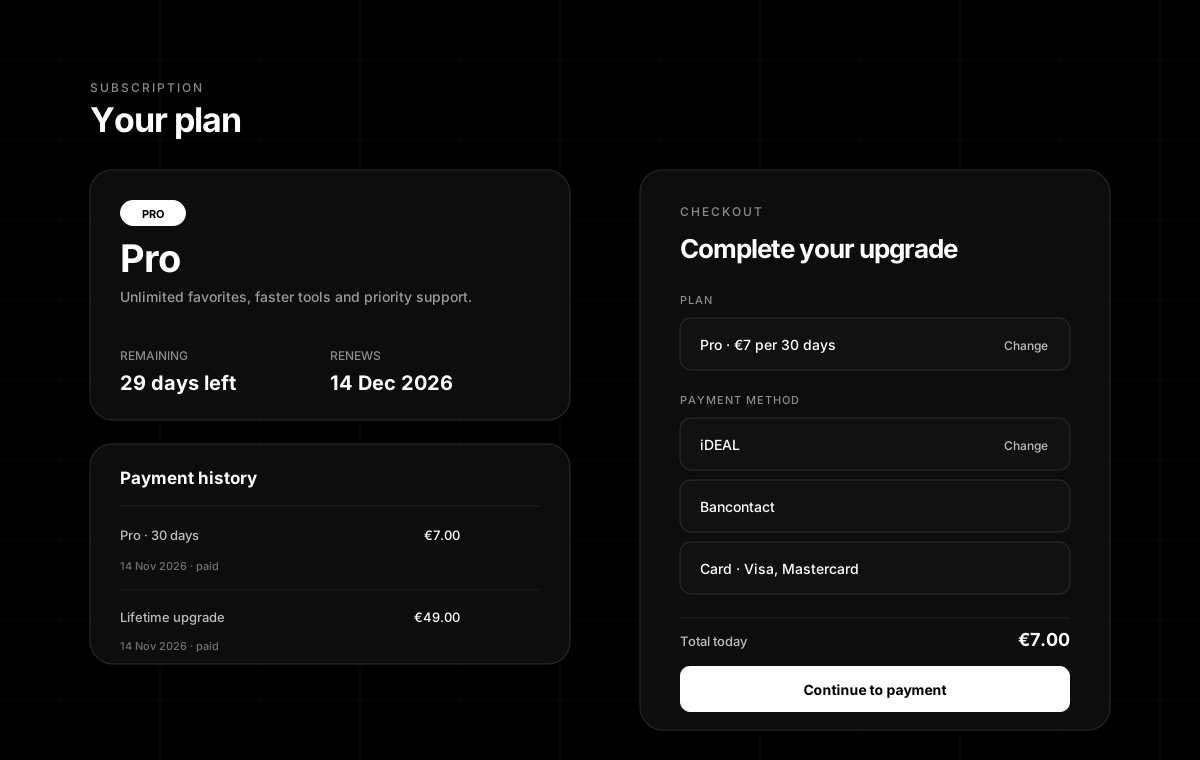
Checkout & payment
Choose a plan on Pricing to open the checkout. Pick the plan and a payment method, check the order summary and continue. Payment is handled by our payment provider in a secure hosted page; you do not need to install an app or create a separate account with us.
Payment methods
After payment you return to Toolora and the plan is activated automatically. If the status still says pending, wait a few seconds; the page checks again. Your order and receipt stay available on Subscription.
On localhost, checkout can run in demo mode when no payment provider key is configured. Live sites never complete a payment without the provider confirming it.
Manage your subscription
Open Subscription from the profile menu. The page shows your current plan, how much time is left, the renewal date, total paid and every order.
- Pro: renews every 30 days. The remaining time counts down from the last payment.
- Lifetime: never renews and never expires. It also includes everything in Pro.
- Upgrade: move from Pro to Lifetime at any time. The Lifetime price is charged once.
Need an invoice or a change to an order? Mail contact@toolora.eu with the order number from the subscription page.
Privacy
Tools process data locally. We do not receive the text, files or images you use inside a tool. Account data is limited to what is needed to sign you in and sync favorites: e-mail address, display name, a hashed password or provider link, and your favorites.
Read the full Privacy Policy and Terms of Use.
Troubleshooting
The verification e-mail does not arrive
Wait a minute, check spam and promotions, then choose Resend code. Make sure the address is spelled correctly. If it still fails, try another sign-in method or contact support.
A passkey does not work
Check that the site is on HTTPS, that you are using the same domain as when you created the passkey, and that the device has a screen lock or security key configured. You can always fall back to e-mail and password.
Payment says pending
The provider may still be confirming the payment. Wait a few seconds; the checkout polls automatically. If it stays pending for more than a few minutes, mail us the order number and do not pay twice.
A tool result looks wrong
Refresh the page and try a smaller input. Tell us the tool name, browser, input type and what you expected. Do not send sensitive files; a description is enough.
The page looks out of date
Hard-refresh with Ctrl + F5 (Windows) or Cmd + Shift + R (Mac). If you use an older browser, update it; passkeys and some tools need a current engine.
Contact support
We answer every message, usually within one working day. Include your account e-mail, the tool or page, your browser and a short description of what happened.
Mail contact@toolora.eu or call +32 492 64 13 35.